
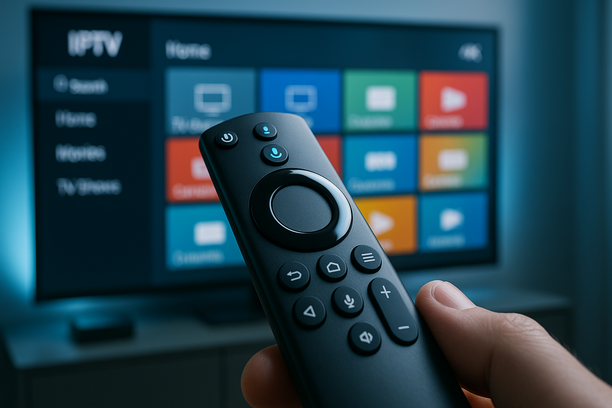
Introduction: What This Buyer’s Guide Covers
Shopping for an IPTV player in 2025 can feel confusing, especially if you’re in the UK or Ireland and just want an easy way to watch live TV, sports and movies without a bloated Sky or Virgin bill. This guide is built to help beginners compare features, prices and real usability so you can pick the right app the first time.
If you’re setting up IPTV on an Amazon Firestick, Android TV box, Smart TV, iPhone or iPad, you’re in the right place. Whether you already have an IPTV subscription or you’re still deciding what to buy, the focus here is simple: match the player’s features and pricing to your actual goals, like smoother sports streams, family-friendly layouts or hassle-free EPG and recording.
You’ll get a plain-English breakdown of what an IPTV player is (and how it differs from an IPTV subscription), plus the most common beginner headaches: buffering, awkward controls, apps crashing on Firestick, and channels not loading on Smart TVs. We’ll walk through the key things to check before you install anything, from device support and user interface to connection security and how your player works with a VPN, linking out where useful to our guide on the best VPNs for IPTV.
From there, you’ll move into:
- How to choose the best IPTV player for UK & Ireland cord-cutters in 2025
- Our top recommended apps for Firestick, Android TV, Smart TVs and iOS
- Step‑by‑step setup, including adding your IPTV details correctly
- Real‑world usage tips for sports, catch‑up and multi‑device homes
- Quick troubleshooting for freezing, login errors and missing channels
- A final verdict to help you confidently pick your ideal IPTV player
By the end, you’ll know exactly which type of IPTV player fits your budget, devices and viewing habits, so you’re not just chasing features on a spec sheet but choosing an app that genuinely makes watching TV easier in your home.
IPTV Players in 2025: What They Are (and Why UK & Irish Viewers Love Them)
Now that you know what this guide covers, the next step is understanding what an IPTV player actually does so you don’t confuse it with the subscription itself.
An IPTV player is simply an app that plays TV streams you already have access to. It’s the “remote control and screen” – not the TV channel company itself.
Think of it like this:
- Netflix app = player
- Netflix subscription = service you pay for
IPTV works the same way. The IPTV player is just the app. The IPTV provider (or subscription) is the separate service that supplies the channels, sports and movies.
According to an Ofcom Media Nations report, more than 60% of UK adults now watch TV over the internet, and Irish viewers are following a similar path with strong growth in streaming. That shift is exactly why IPTV players have exploded in popularity with cord-cutters.
IPTV Player vs IPTV Provider vs Traditional TV
Here’s the clean difference in plain English so you don’t mix them up when you start comparing apps later in this guide:
- IPTV player: The app you install (on Firestick, smart TV, phone, etc.). It reads your login details or playlist (often called an M3U file or Xtream codes) and displays the channels.
- IPTV provider: The company or website that sells you access to live TV, sports, movies and series. This is your IPTV subscription, not the app.
- Traditional broadcast TV: Channels come by aerial, satellite dish or cable. Limited channel list, fixed schedule, and usually higher monthly bills.
Example: you install an IPTV player app on your Firestick. On its own, it shows nothing. Once you add details from an IPTV subscription, the same app suddenly shows thousands of channels and films. Change provider, keep the player – your app stays, only your service changes.
Common Ways People Use IPTV Players
As you’ll see when we get to the real‑world examples and side‑by‑side comparison, most UK and Irish homes use an IPTV player in one of a few typical ways:
- Live TV: Watching day-to-day channels – news, soaps, kids’ TV – over your broadband instead of aerial or satellite.
- Catch‑up & on-demand: Many providers include 24–72 hour catch‑up, so you can rewind to last night’s match or episode without recording it.
- International channels: Irish and UK expats often use IPTV players to watch channels from Poland, India, the Middle East, the US and more, all in one app.
- Sports: Football, GAA, rugby, boxing and PPV events are a huge pull for cord-cutters looking for more flexible viewing than traditional TV bundles.
Popular Devices and Viewing Habits in the UK & Ireland
Knowing which devices people actually use helps when we discuss player compatibility later on.
- Amazon Firestick: The go-to choice in many UK and Irish homes because it’s low cost, plugs into any HDMI port, and supports a wide range of IPTV player apps. Guides like best IPTV for Firestick are among the most searched by new users.
- Android TV boxes & Android TVs: Devices such as Nvidia Shield, Xiaomi boxes, or built‑in Android TVs are popular with heavier users who want more power and storage.
- Samsung & LG Smart TVs: Many viewers prefer using an IPTV player directly on the TV without extra hardware. The IPTV on Smart TV guide is often the first stop for beginners setting this up.
- Mobile phones & tablets: Ideal for watching in bed, commuting, or keeping up with a match while someone else uses the main TV.
Put simply: the IPTV player is your viewing app, installed on whichever screen you like. The service behind it decides what channels, movies and sports you actually see. Once you understand that split, the buying decisions we cover next become far simpler.
The Hidden Problem: Why Your IPTV Feeds Buffer, Freeze and Look Terrible
Once you’ve grasped the player vs provider difference, it’s easier to see why so many people blame the wrong thing when pictures start to stutter. Most UK and Irish viewers blame the IPTV provider the second a match starts buffering. Often, the real culprit is the player app, device, or home setup. Here’s how to tell the difference and fix it without wasting money switching providers every month.
1. Constant Buffering and Freezing
Buffering every few seconds usually comes from one of three places: your broadband, your player, or an overloaded server.
- When it’s likely your internet or Wi‑Fi:
- Speed tests on your TV/Firestick show under 20 Mbps while streaming HD.
- Netflix, YouTube and IPTV all stutter at the same time.
- Picture improves instantly when you move closer to the router or plug in Ethernet.
- When it’s probably the IPTV provider:
- Only big live events (Premier League, Champions League) buffer, everything else is smooth.
- Same channel buffers on every device in your home.
- Friends using the same provider complain at the same time.
- When it’s your player or device:
- One app is choppy, but a different player on the same device is fine.
- Freezing stops after you clear cache or reinstall the player.
- Older Firesticks or budget Android boxes overheat and lag after 20–30 minutes of streaming.
If you’re on a Firestick, switching to a lighter, IPTV‑focused app and following a dedicated Firestick IPTV setup guide often cuts buffering dramatically before you even consider changing provider.
2. Low Resolution and Blurry Picture
Irish and UK homes now average well over 70 Mbps on fixed broadband according to a recent Ofcom report, so if your IPTV looks worse than Freeview, something’s off.
- Player or device issue:
- Your TV is 4K, but the player’s video or decoder settings are set to SD or a low bitrate option.
- Picture improves immediately when you change the stream type (e.g. from M3U to XC/API) or switch to another player app.
- Hardware acceleration is disabled, so the device struggles and drops quality.
- Provider or plan limitation:
- Some “cheap” subscriptions only offer SD streams for UK sports to keep costs down.
- Only certain channels look bad while others are crisp HD or 4K on the same device.
- Network congestion:
- Evenings look worse than mornings; quality improves after midnight.
- Running a speed test shows big drops during peak hours on your ISP.
A good IPTV player gives you clear control over resolution, decoder type and stream format. If your current app hides all that, consider moving to a more advanced option and follow a beginner‑friendly IPTV Smarters Pro setup guide for UK and Ireland.
3. Channels Not Loading or Black Screen
Blank screens are frustrating, especially when you’ve paid for a premium sports package.
- Likely provider/server issues:
- Dozens of channels show “error” or “offline” at once.
- EPG loads, but the actual video never starts.
- Same problem appears on multiple devices and different players.
- Likely player/setup issues:
- Only one category (e.g. UK Sports) fails, but others work; your playlist or portal may not have synced correctly.
- Using an outdated M3U URL or login; the provider has sent you new details.
- Time and date on your box/TV are wrong, causing authentication errors.
As a quick test, install a second IPTV player and add the same subscription. If channels work there, the problem is your original app or its settings, not the subscription itself.
4. Confusing UI and Remote Control Nightmares
Many beginners in Ireland and the UK give up on IPTV because the app feels clunky, not because the service is bad.
- Signs it’s the player UI:
- You can’t easily find UK/Ireland channels or live sports; categories are a mess.
- Remote buttons don’t do what you expect – up/down doesn’t change channels smoothly, back exits the app instead of the menu.
- You struggle to pause, rewind or switch audio/subtitles during live matches.
- Signs it’s your device or remote:
- Remote is laggy in every app, not just IPTV.
- Buttons double‑press or miss presses; batteries or the remote itself may be failing.
- On Smart TVs, the built‑in app store version of the player runs much slower than on a Firestick or dedicated Android box.
If you’re new to IPTV, switching to a player with a cleaner interface and better Firestick/Smart TV support often makes the whole experience feel like Sky or Virgin, without touching your subscription. For a wider overview of options and what to expect in the UK and Ireland, see this updated IPTV subscription guide for cord‑cutters.
Before blaming your provider, test another IPTV player on the same device and connection – it’s the fastest way to see whether the problem is your app, hardware or subscription.
How to Choose an IPTV Player: 7 Features That Actually Matter
Once you can spot player‑related problems, you’re ready to choose the right app. Pick the wrong IPTV player and even a premium subscription will feel slow, glitchy and frustrating. Use these seven features as a simple checklist before you install anything on your Firestick, Android TV box, Smart TV or iPhone.
1. Device Compatibility (Firestick, Android TV, Smart TVs, iOS)
Your player has to work perfectly on the device you actually watch on. Many UK and Irish cord-cutters split viewing across a Firestick in the living room and a Smart TV or iPad in the bedroom, so cross‑device support really matters.
- Why it matters: A player may run great on Android but crash constantly on Samsung or LG TVs. That’s wasted time and money.
- What to look for:
- Dedicated apps for Firestick, Android TV and major Smart TV brands.
- iOS and iPadOS support if you watch on the go.
- Simple install instructions for Smart TVs – guides like this IPTV on Smart TV tutorial are a good sign.
- Beginner tip: Before committing, search “[app name] + your device” on Google and check recent user reviews. If Firestick or LG owners keep reporting freezing or black screens, skip that app.
2. Ease of Use & UX
A good IPTV player should feel as simple as Netflix. No cryptic menus. No endless scrolling just to find Sky Sports.
- Why it matters: Clunky menus are the number one reason beginners give up on IPTV after a trial.
- What to look for:
- Clean home screen with Live TV, Movies, Series clearly separated.
- Quick search and categories (Sports, Kids, Movies, UK Channels, etc.).
- Remote‑friendly design for Firestick and Android TV – big buttons, not tiny text boxes.
- Beginner tip: If possible, use an IPTV trial with your chosen player. If you can’t add your playlist and find BBC or Sky within two minutes, the UX is not beginner‑friendly.
3. EPG (TV Guide) Support
An EPG turns a random channel list into a proper TV experience with timings and programme names.
- Why it matters: Without a TV guide you’re guessing what’s on. With it, you can plan match kick‑offs, new episodes and recordings.
- What to look for:
- Support for XMLTV or URL‑based EPG links from your provider.
- 7‑day (or longer) guide data for UK and Irish channels.
- Option to show EPG in grid view, not just a basic list.
- Beginner tip: Ask your IPTV provider if they supply a dedicated EPG URL. If they do, make sure the player has a clear “EPG URL” field in settings – if you can’t spot it easily, pick a different player.
4. Subtitles & Multiple Audio Tracks
In the UK and Ireland, accessible viewing isn’t a luxury – it’s essential. Subtitles help in noisy households, and extra audio tracks are vital for films and sports.
- Why it matters: Many IPTV streams include closed captions and multiple audio languages, but your player has to support them or they’re wasted.
- What to look for:
- On‑screen toggle for subtitles during playback.
- Ability to switch audio tracks (e.g., English, stadium sound or original language).
- Default subtitle preferences in settings.
- Beginner tip: Test one movie and one sports channel. If you can’t turn subtitles on or change audio within a few clicks, try a different player before you set everything up for the whole family.
5. Recording & DVR Features
Live matches and late‑night shows don’t always fit around work and school. That’s where recording and DVR support earn their keep.
- Why it matters: Recording lets you pause, rewind and save live TV, which is especially useful for Premier League, GAA and big US sports shown at awkward times.
- What to look for:
- Local recording to your device or external storage.
- Series recording or at least manual start/stop timers.
- Clear storage management so you can delete old recordings easily.
- Beginner tip: Check if your provider already offers “catch‑up” or cloud DVR before paying for a premium player. If catch‑up is included, simple pause/rewind support in the player may be enough.
6. Profiles & Parental Controls
If kids, flatmates or guests use the same TV, separate profiles keep everything tidy and safe.
- Why it matters: You don’t want children stumbling onto 18+ content or accidentally deleting your favourite sports list.
- What to look for:
- Multiple user profiles with individual favourites and watch lists.
- PIN‑protected parental controls for adult or locked categories.
- Ability to hide or password‑protect certain channel groups entirely.
- Beginner tip: As soon as you install the app, create a “Kids” profile and lock adult categories with a PIN. Don’t wait until your children start clicking around the remote.
7. Security & Legal Considerations (UK & Ireland)
The player itself doesn’t provide content, but how you use it absolutely matters for UK and Irish law. Authorities, including UK enforcement bodies working with Ofcom, have taken action against illegal IPTV services and users accessing pirated streams via apps and devices.
- Why it matters:
- Some free apps are packed with malware or pre‑loaded pirate playlists.
- Streaming unlicensed channels can expose you to legal and privacy risks.
- What to look for:
- Players that clearly state they are “just a media player” and do not sell or promote channels.
- No pre‑loaded playlists or “free sports” sections – these are red flags.
- Support for secure connections and compatibility with a quality VPN, such as those compared in this VPN for IPTV guide.
- Free vs paid apps – beginner tip: Free players can work, but many show aggressive ads and offer zero support. A low‑cost, ad‑free app with active updates is usually worth it for UK and Irish viewers who want stability, privacy and clearer terms of use.
Top IPTV Players for UK & Ireland in 2025: Side‑by‑Side Comparison
With your buying checklist in mind, you’re ready to look at specific apps. Before you pick an IPTV subscription, you need the right IPTV player. Below is a practical comparison of the most talked‑about apps among UK and Irish cord‑cutters in 2025, with who each one actually suits in real life.
| Player | Best For | Key Platforms | Typical App Cost |
|---|---|---|---|
| TiviMate | Power users on Android / Firestick | Android TV, Fire TV, Android mobiles | Free + low‑cost lifetime Premium |
| IPTV Smarters Pro | Beginners on almost any device | Android, iOS, Firestick, Samsung/LG, PC | Free + low‑cost Pro version |
| Smart IPTV | Direct‑to‑TV on Samsung/LG | Samsung Tizen, LG webOS | One‑time activation per TV |
| Flix IPTV | Premium feel on Smart TVs | Samsung, LG, Android TV, Fire TV | Time‑limited trial + one‑time fee |
| GSE Smart IPTV | Apple users | iOS, Apple TV, Android | Free + in‑app purchases |
| XCIPTV | Testing multiple services | Android, Fire TV | Mostly free |
| OTT Navigator | Sports fans who like tweaks | Android TV, Fire TV | Free + low‑cost premium |
| Perfect Player | Older / low‑spec boxes | Android, Windows | Free + optional paid |
TiviMate – Power users on Android & Firestick
Supported platforms: Android TV boxes, Nvidia Shield, Amazon Firestick/Fire TV, Android phones/tablets (no iOS).
Pricing: Free version plus a one‑time or low‑cost lifetime “Premium” licence via Google Play (family library style for multiple devices).
- Pros for beginners
- Modern, TV‑like interface that feels close to Sky/Virgin.
- Excellent EPG grid, catch‑up and multi‑view options once set up.
- Very stable on Firestick and Android TV boxes popular in the UK and Ireland.
- Cons
- No iPhone, iPad or Samsung/LG native smart TV app.
- Premium licence purchase can confuse total beginners.
- Setup screens are a bit technical compared with simpler apps like IPTV Smarters.
Ideal for: Firestick and Android box users who plan to watch daily and want a “proper TV” feel with advanced features.
IPTV Smarters Pro – Easiest all‑rounder for beginners
Supported platforms: Android, iOS, Firestick/Fire TV, Android TV, Samsung (Tizen) and LG (webOS) smart TVs, Windows and macOS.
Pricing: Free version with ads and a low‑cost “Pro” version; widely used as the starter app for new users in the UK & Ireland. For a detailed install guide, see this IPTV Smarters Pro guide for Ireland & UK.
- Pros for beginners
- Very simple login using M3U or Xtream Codes details from your provider.
- Works on almost everything – phones, tablets, smart TVs, Firestick and PCs.
- Nice category layout for live TV, films and series; parental control options.
- Easy to switch profiles if your household shares one IPTV subscription.
- Cons
- Free version may show ads and lacks some quality‑of‑life features.
- Interface isn’t as customisable as TiviMate or OTT Navigator.
- Some features vary slightly by platform, which can confuse new users.
Ideal for: Absolute beginners who just want something that works on any device with minimal setup. A strong match if you’re following a general IPTV subscription guide for UK & Ireland cord‑cutters.
Smart IPTV (SIPTV) – Simple for smart TV owners
Supported platforms: Samsung Smart TV (Tizen), LG Smart TV (webOS), some Android TV boxes via APK.
Pricing: One‑time app activation fee per TV after a short trial; paid through their website by entering your TV MAC address.
- Pros for beginners
- No extra box needed – runs directly on most Samsung and LG TVs.
- Once your playlist is uploaded on their website, it auto‑loads when you open the app.
- Clean live TV grid and favourites list.
- Cons
- Initial upload process (MAC + M3U on website) can be fiddly.
- No native app for iOS; limited features compared with TiviMate or IPTV Smarters.
- If the TV OS updates, you sometimes need to re‑register or re‑upload playlists.
Ideal for: People who want IPTV directly on a Samsung or LG TV with no Firestick or extra box.
XCIPTV – Best for multiple IPTV services
Supported platforms: Android TV, Android phones/tablets, Firestick/Fire TV (APK installs).
Pricing: Mostly free front‑end; some branded versions are bundled by IPTV providers.
- Pros for beginners
- Supports several accounts, handy if you test multiple IPTV trials.
- Built‑in EPG, catch‑up and VOD sections separated clearly.
- Often pre‑configured by some IPTV providers, so you just log in.
- Cons
- Interface can feel busy and slightly dated.
- Mostly Android‑only; no iOS or native smart TV versions.
- Different “reskinned” versions behave slightly differently, which confuses new users.
Ideal for: Testers and heavy users who jump between multiple IPTV services or trials.
GSE Smart IPTV – Flexible but older‑feeling
Supported platforms: Android, iOS, Apple TV, some smart TVs via casting.
Pricing: Free with optional in‑app purchases to remove ads and unlock extra features.
- Pros for beginners
- Rare option that works well on both iOS and Apple TV.
- Very flexible playlist and EPG management if you like to tweak.
- Good if your provider gives multiple M3U lists and XML EPG links.
- Cons
- Interface looks dated in 2025 compared with newer players.
- Menu system is slightly technical; not grandma‑friendly.
- Development pace has slowed, so some newer devices feel less polished.
Ideal for: iPhone, iPad and Apple TV users who want fine‑grained control over playlists and EPGs.
Flix IPTV – Premium feel on smart TVs
Supported platforms: Samsung Smart TV, LG Smart TV, Android TV, Firestick/Fire TV, some Hisense/Philips sets.
Pricing: Time‑limited free trial per device followed by a low, one‑time activation fee for lifetime use.
- Pros for beginners
- Nice, modern interface with good subtitle and audio controls.
- Device‑based licence – no monthly fee for the app itself.
- Good channel zapping speed on most new TVs and Firesticks.
- Cons
- Activation process (code + payment on website) puts off some first‑timers.
- No native iOS app.
- Licence is per device, so several TVs can add up.
Ideal for: Users who mainly watch on smart TVs and want a one‑off payment app that looks polished.
OTT Navigator – Highly customisable for sports fans
Supported platforms: Android TV, Firestick/Fire TV, Android phones/tablets.
Pricing: Free with advanced features unlocked via a low‑cost “premium/unlock” option on Google Play.
- Pros for beginners
- Excellent filtering for sports – sort by league, competition or channel group.
- Powerful favourites, recent channels and picture‑in‑picture options.
- Very fast performance on Nvidia Shield and newer Fire TV sticks.
- Cons
- Menus can overwhelm new users; lots of settings to learn.
- No iOS or Windows app.
- Best features are hidden in sub‑menus, so there’s a learning curve.
Ideal for: Sports‑heavy viewers on Android/Firestick who love custom channel lists and advanced viewing options.
Perfect Player – Lightweight and simple on older boxes
Supported platforms: Android boxes, some Firestick/Fire TV installs (APK), Windows.
Pricing: Free with optional paid version to remove ads and support development.
- Pros for beginners
- Very light on resources, works well on cheap or older IPTV boxes.
- Simple live TV grid and channel list once configured.
- Supports local and remote M3U/EPG sources.
- Cons
- Interface feels old and not very intuitive in 2025.
- Fewer quality‑of‑life features than TiviMate or IPTV Smarters.
- Not ideal if you mainly watch on phones or tablets.
Ideal for: Budget Android box users who just need a light, no‑frills IPTV player.
Quick Recommendation List: Which IPTV Player Should You Choose?
- Best for absolute beginners (any device): IPTV Smarters Pro
- Best for Firestick & Android TV power users: TiviMate or OTT Navigator
- Best direct‑to‑TV option (Samsung/LG): Smart IPTV or Flix IPTV
- Best for Apple users (iPhone, iPad, Apple TV): GSE Smart IPTV
- Best for testing multiple IPTV services: XCIPTV
- Best for older or low‑spec Android boxes: Perfect Player
Whichever player you choose, pair it with a reliable, legal‑focused IPTV subscription in the UK and, ideally, a VPN for streaming to keep your viewing private.
Real‑World Experience: What It’s Like Using These IPTV Players Day‑to‑Day
Comparing feature lists is helpful, but you also need to know how these apps feel in daily use. Here’s how three of the most common IPTV players actually perform on a Firestick, Android TV box and Samsung/LG smart TV with UK and Irish channels and live sports.
IPTV Smarters Pro on Firestick & Android TV: Best “All‑Rounder” for Beginners
On a Firestick, IPTV Smarters Pro is usually a two‑step job: install the app from the store or APK, then log in with the details from your IPTV subscription provider. On Android TV boxes (Nvidia Shield, Formuler, budget boxes) you can often grab it straight from the Google Play Store.
First‑time setup is mostly about getting your M3U playlist and EPG URL into the app. The login screen gives you two main options:
- “Load Your Playlist or File/URL” – paste M3U and EPG URLs
- “Login with Xtreme Codes API” – use username, password and server URL
Once that’s done, Smarters pulls in channel groups like “UK Entertainment”, “Ireland”, “Sports”, “Movies” and builds a clean grid EPG. Channel logos usually appear automatically, which helps when you’re flicking around during a busy Saturday of Premier League or GAA.
- Remote behaviour: On Firestick and Android TV, the D‑pad navigates logically – up/down for channels, left/right for time in the EPG, OK to tune in. Long‑press OK often brings up options like “Add to favourites”.
- Channel zapping speed: With a solid 50–100 Mbps connection, UK and Irish channels generally load in 1–3 seconds, with sports channels sometimes taking a moment longer in peak evening hours.
- Catch‑up & VOD: If your provider supports it, the catch‑up tab feels similar to using a regular cable box, with programmes listed by date and time.
For people in the UK and Ireland, one extra thing to think about is privacy. Many reviewers and IPTV guides recommend using a VPN with streaming apps to keep activity away from your ISP; a good IPTV VPN can also help with occasional ISP throttling during big matches.
Smart IPTV on Samsung & LG TVs: Great Once It’s Set Up
On Samsung and LG smart TVs, Smart IPTV is popular because it runs without a separate box. You install it from the TV app store, note the MAC address on screen, then go to the Smart IPTV web portal on your laptop or phone to upload your M3U playlist.
That first upload is slightly fiddly but you only do it once unless you change provider. After that, the TV app loads your channels automatically at launch and you navigate using the standard TV remote.
- EPG and playlist import: The app depends heavily on the quality of your provider’s playlist and EPG. When those are good, the grid guide feels very “Sky‑like”, with now/next and timed listings for UK and Irish channels.
- Remote behaviour: Channel up/down on the TV remote switches IPTV channels, not aerial channels, which feels natural. The coloured buttons often open favourites or category lists once you learn them.
- Reliability: Streams are stable as long as Wi‑Fi is strong; wired Ethernet to the TV makes a noticeable difference during 4K football or rugby.
For many beginners, Smart IPTV is the first stop when they follow a guide to installing IPTV on a smart TV, simply because it lives inside the TV and doesn’t require a Firestick.
Kodi with IPTV Simple Client on Android TV Boxes: Powerful but Fiddly
Kodi with the IPTV Simple Client add‑on is more advanced but gives you tight control over how your UK and Irish channels are organised. You install Kodi, then enable IPTV Simple Client, then paste in your M3U and EPG URLs.
Once configured, the Live TV section integrates channels, categories and EPG into Kodi’s interface. On an Android TV box or Shield, remote control behaviour is smooth, but there’s more menu depth than in Smarters or Smart IPTV. It feels a bit more “PC‑like” than “set‑top‑box‑like”.
3 Things That Confuse Many Beginners
- Player vs. provider: At first it isn’t clear that apps like IPTV Smarters Pro, Smart IPTV and Kodi are only players. You still need a separate IPTV subscription for channels – the apps don’t include content.
- Multiple URLs: Many providers give you portal URLs, M3U links, EPG links and Xtream Codes logins. Knowing which one goes into which app field is not obvious if you’re brand new.
- EPG delays: After the first setup, the EPG sometimes takes several minutes to fully populate. It can feel “broken” at first, when it’s really just downloading data in the background.
3 Things That Work Really Well Day‑to‑Day
- Favourites lists: Being able to favourite BBC, ITV, RTÉ, Sky Sports, TNT Sports and a few kids’ channels means you can ignore the thousands of foreign channels and get to “your TV” in seconds.
- Cross‑device familiarity: Once you’ve learned one modern IPTV player, moving from a Firestick in the living room to an Android box in the bedroom feels intuitive — same concepts, same button patterns.
- Sports reliability with decent internet: With 50 Mbps+ broadband and a VPN running quietly in the background, UK and Irish sports channels in Smarters and Smart IPTV are usually watchable most evenings with only the odd buffer during huge events.
For UK and Irish beginners, a Firestick with IPTV Smarters Pro or a Samsung/LG TV with Smart IPTV usually gives the smoothest “everyday TV” feel, while Kodi suits tinkerers who enjoy custom setups.
Step‑By‑Step: Setting Up Your IPTV Player Safely in the UK & Ireland
After seeing how these apps work in practice, the next step is getting your own setup running. Follow these steps on a Firestick, Android TV box or Smart TV. No tech background needed – just your device, internet and IPTV details (M3U or Xtream Codes) from your provider.
1. Install an IPTV app on your device
First, pick a trusted IPTV player app rather than random, unbranded options.
- Firestick / Fire TV
- From the home screen, go to Find > Search.
- Type the name of your chosen app (for example, “IPTV Smarters Pro”).
- Select it from the list and click Download / Get.
- Android TV (Nvidia Shield, Chromecast with Google TV, Xiaomi, etc.)
- Open the Google Play Store.
- Search for your preferred player and hit Install.
- Smart TV (Samsung / LG)
- Open the TV’s app store (Samsung Apps / LG Content Store).
- Search for an IPTV player app (e.g., “Smart IPTV” or similar).
- Install and open the app.
If you need a broader device setup overview, the guide to IPTV on Smart TV walks through the basics for UK and Irish users.
2. Understand M3U vs Xtream Codes
Your provider will usually send you either an M3U playlist link or Xtream Codes API details. Sometimes both.
- M3U playlist – a single URL that contains all your channels and VOD in one list.
- Xtream Codes login – typically includes:
- Server/portal URL
- Username
- Password
Which should you use? Xtream Codes usually loads EPG and categories more cleanly and is less likely to break if the playlist URL changes, so use Xtream first if you have it. Use M3U if your app or provider only supports playlists.
3. Add your IPTV details into the player
Adding an M3U playlist (general steps – menus vary slightly by app):
- Open your IPTV app.
- Choose Add Playlist or Add New User.
- Select Load Your Playlist or File/URL.
- Enter:
- Playlist name – any label you like, e.g., “UK Sports”.
- M3U URL – paste the full link from your provider (check for typos).
- Click Add / Save / Login and wait for channels to load.
Adding Xtream Codes API:
- Open your IPTV app.
- Choose Login with Xtream Codes API or similar.
- Enter:
- Any name – e.g., “Main IPTV”.
- Username – exactly as given.
- Password – copy carefully, case‑sensitive.
- Server/portal URL – usually looks like
http://example.com:8080.
- Press Login and let the app import Live TV, Movies, Series and EPG.
If your subscription isn’t active yet or is mis‑typed, channels won’t load. Many providers offer trials; a dedicated IPTV trial can help you test your setup before committing.
4. Configure EPG (TV Guide) and subtitles
EPG (Electronic Programme Guide) gives you the on‑screen schedule for each channel.
- With Xtream Codes, the EPG is usually auto‑loaded once you log in.
- With M3U, you may need a separate EPG URL:
- Open your app’s EPG or TV Guide settings.
- Paste the EPG URL from your provider.
- Tap Update / Refresh EPG and wait a minute.
Subtitles (closed captions) are usually controlled per channel or per stream:
- While watching a channel or movie, press the Options or CC/Subtitles button in the player.
- Choose your preferred subtitle track (EN, ENG, etc.).
- If audio is out of sync, some players offer a small subtitle delay/offset option – adjust by a few hundred ms until it feels right.
5. Reduce buffering with buffering/cache tweaks
UK and Irish broadband is generally fast, but Wi‑Fi congestion and poor servers still cause buffering. Try these simple tweaks inside your IPTV app:
- Change streaming protocol: in player settings, switch between Auto / HLS / ExoPlayer / VLC or similar. Often one player engine is much smoother on your device.
- Lower stream quality: if your line is 20–30 Mbps or shared, choose 720p instead of 4K on busy sports channels.
- Increase buffer size: some apps let you set buffer to 5–10 seconds; a bigger buffer can stop constant stuttering.
- Use wired where possible: an Ethernet adapter for Firestick or Android TV can dramatically stabilise live sports.
6. Stay safe: VPN, privacy and legal basics in the UK & Ireland
This is where UK and Irish users really need to pay attention.
- VPN for IPTV
- A quality VPN encrypts your traffic and can prevent your ISP from seeing what apps you use or throttling streaming traffic.
- Pick a provider with fast UK and EU servers and “no‑logs” policies. See this guide to the best VPNs for IPTV for tested options that work well with Firestick and Smart TVs.
- Install the VPN app on your device, connect to a nearby server (London, Dublin, Amsterdam), then open your IPTV app.
- Privacy basics
- Never share your IPTV username/password publicly or in Facebook/Telegram groups.
- Avoid logging into IPTV apps with unnecessary social accounts – email‑only is safer.
- Turn off unnecessary “analytics” or “usage statistics” inside apps where possible.
- Legal considerations (high‑level, not legal advice)
- In the UK, IPTV legality depends on whether the content is licensed; watching clearly pirated streams can breach copyright law.
- Irish law also protects copyright holders; rights‑holders and ISPs continue to block unlicensed sports and movie streams.
- To stay on the safe side, prefer properly licensed IPTV services or packages that clearly state they have distribution rights for the channels you watch.
Once you’ve installed a trusted player, added your M3U or Xtream Codes, tuned EPG/subtitles and tightened your safety settings, your IPTV setup should feel as simple as a normal TV box – just with far more control.
FAQs, Fixes and Final Verdict: Which IPTV Player Should You Actually Use?
At this point you know what an IPTV player is, how to choose one, which apps lead the market and how to set them up. The final piece is matching everything to your budget and devices and dealing with the most common problems quickly.
Quick Recommendations by Budget & Device
- Best overall for beginners (Ireland/UK): A polished app such as IPTV Smarters–style players paired with a stable subscription gives the smoothest start. If you’re new and just want live TV, movies and sport with minimal hassle, look at a guided setup like this IPTV Smarters Pro guide for Ireland and UK users.
- Best free option: Free players that accept M3U or Xtream codes (e.g., many generic “IPTV Player” apps on Android or smart TVs) are fine if you already have a provider and don’t mind basic interfaces and ads. They’re ideal for testing an IPTV trial before you commit.
- Best for Firestick: Firestick users in the UK and Ireland usually get the smoothest results from apps that are Fire OS–optimised and support external players for better video decoding. For more detail on performance and setup, see this guide to the best IPTV for Firestick.
- Best for Smart TV (Samsung/LG): On native app stores, stick to well‑rated IPTV players with clear recent reviews and regular updates. Many users in 2024–2025 report fewer crashes when using dedicated smart TV apps instead of casting from a phone.
- Best for sports fans: Sports viewers need stable streams, catch‑up and time‑shift. Premium subscriptions that offer anti-freeze tech and strong European servers generally handle busy match nights better, especially when paired with a quality player and a reliable VPN for IPTV to avoid ISP throttling on big fixtures.
Fast Fixes to Common IPTV Player Problems
Most “my IPTV isn’t working” issues come from simple settings, not from your subscription dying. Try these quick wins before you panic.
- No sound
- Check TV/Firestick/box volume and mute first.
- In the player settings, change the audio decoder from AC3/Dolby to a standard option like “Stereo” or “Default”.
- Try a different channel from the same category. If others work, it’s a source issue, not your app.
- Black screen or freezing
- Force-close the app and reboot your device and router.
- Switch the player’s decoder between Hardware, Software and Exo (on Android/Firestick).
- Test your connection on another app like YouTube; if that also buffers, the problem is your internet, not the IPTV player.
- EPG (TV guide) not loading
- Refresh or “Reload EPG” in the app settings.
- Check that the EPG URL from your provider is entered correctly and assigned to the right playlist/portal.
- Change the EPG time offset if programmes show at the wrong hour (common between UK and Irish feeds).
- Subtitles not working
- While the channel or VOD is playing, open the player’s subtitle menu and choose a different subtitle track.
- On some VOD files, subtitles are not embedded at all; test a different movie or series to confirm.
- If using external players (e.g., VLC or similar), ensure “Closed Captions/Subtitles” are enabled there too.
- App says “not available in your region”
- This is typically an app store or geo‑restriction issue, not your IPTV subscription.
- Install the app using an APK (Android/Firestick) or change your store region temporarily.
- Use a VPN with a UK or Irish server if streams are being blocked or throttled by your ISP; a VPN can often reduce buffering during peak hours.
Final Verdict: Free vs Paid – What Should You Use?
If you’re just curious about IPTV, or you only watch the odd film, a free IPTV player plus a short IPTV trial is enough. You’ll get a feel for the channel list, quality and interface without committing.
If you’re replacing Sky or Virgin, watch a lot of sport, or want family‑friendly reliability, a polished paid app combined with a quality subscription is worth it. You’ll usually get:
- Faster channel zapping and fewer crashes.
- Better EPG, catch‑up and recording options.
- Support if something breaks before a big match or show.
Use free players to test and tinker; once IPTV becomes your main TV service, upgrading your player and subscription together makes the whole experience feel much closer to “normal TV” for everyone in the house.
Conclusion & Next Steps
For beginners in the UK and Ireland, the smartest move is simple: pick a trusted IPTV player, stay on the right side of the law and test things slowly before you spend big.
Most legal streaming and IPTV‑style services in the UK sit in the roughly £7–£18 per month range for a single subscription, based on typical prices from platforms like Netflix, Disney+ and NOW in 2025. When you stack a few of those together, costs rise fast. A good player plus a single, well‑chosen IPTV subscription can often replace several apps and save money over the year.
Your practical next steps:
- Match the app to your device and budget. If you’re on a Firestick or smart TV, start with a player that’s known to work smoothly with those devices. The dedicated IPTV Smarters Pro guide for Ireland & UK users walks through the pros, cons and ideal setups for beginners.
- Follow a clear setup guide. Use a step‑by‑step tutorial so you’re not guessing with M3U links, Xtream codes or EPG settings. The IPTV subscription installation guide shows you exactly how to go from purchase to watching live TV without technical headaches.
- Start with a free or trial option. Test stability, channel quality and on‑demand content using a free player or short trial before committing to a long subscription.
- Stay safe and legal. Only use legitimate sources and, if you’re accessing IPTV from the UK or Ireland, consider pairing your setup with a reputable VPN from a trusted list such as a best VPNs for IPTV guide to protect privacy and avoid ISP throttling.
If you’re ready to move, your next action is straightforward: compare the top IPTV apps for your device, pick one that fits your budget and follow the setup steps above. For extra help, you can also browse the main IPTV Smarters blog for updated tips on UK and Ireland‑friendly services.
Start small, test your player, then upgrade only when you’re happy with the quality. That way you get cheaper, smarter TV in the UK or Ireland—without nasty surprises.