
Introduction: IPTV Apps in 2025 — What Beginners in Ireland & the UK Need to Know
Sky, Virgin Media and even Freeview are getting more expensive, so more households in Ireland and the UK are asking a simple question: “Can I get the same channels for less?” That’s where IPTV and the modern IPTV app come in.
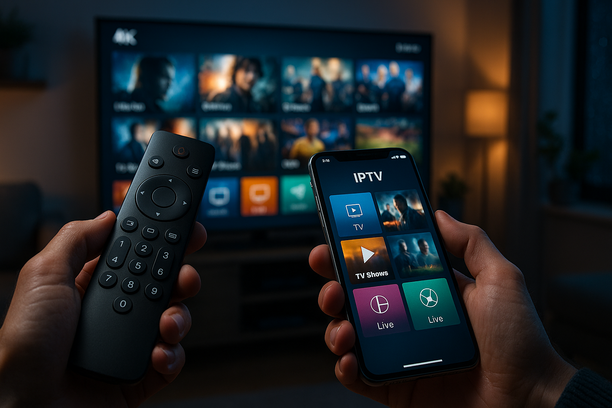
Put simply, IPTV (Internet Protocol Television) means TV channels and on‑demand shows streamed over your broadband instead of through a satellite dish, cable, or aerial. An IPTV app is the software you install on a Smart TV, Firestick, Android box, phone or tablet to actually watch those streams in one place.
For cord‑cutters in the UK and Ireland, IPTV apps are attractive because they:
- Remove the need for long Sky or Virgin contracts
- Work on devices you already own (Firestick, Smart TV, Android)
- Can bundle live TV, sports, movies and boxsets into one interface
Traditional services like Sky, Virgin and Freeview use fixed hardware and channel packs. You pay for the bundle they choose. With a legal IPTV subscription, you pay for the content and then choose whichever IPTV app suits you best for watching it.
This guide is written for beginners in Ireland and the UK who are curious about terms like “IPTV UK”, “IPTV Ireland”, and “best IPTV app” but don’t know where to start. We’ll walk through how IPTV apps work, what features to look for, how different app types compare, real‑world pros and cons, and how to test services safely with an IPTV trial before spending serious money.
Key idea: your IPTV app is just the viewing tool; the quality of your experience depends on both the app and the subscription you load into it.
Before we break down features and setup, it’s important to understand why grabbing “any old” IPTV app can actually cause more problems than it solves.
The Hidden Problem: Why Picking ‘Any Old’ IPTV App Can Backfire
On paper, most IPTV apps look similar. In reality, choosing the wrong one can mean frozen screens, dodgy payments and even warning letters from your internet provider in Ireland or the UK.
-
Confusing tech jargon
Many apps throw terms like “M3U,” “EPG,” and “XC API” at you with no plain‑English help. Picture a Saturday afternoon: you’ve finally cut the cord, but instead of watching the match you’re googling acronyms. Beginner‑friendly options, such as those in this guide to the best IPTV player apps, translate that jargon into simple “Live TV”, “Movies” and “Series” menus. -
Buffering and low-quality streams
Cheap or “free forever” apps often connect you to overcrowded, unstable servers. Result? The picture breaks up every few seconds, especially on busy Premier League weekends. Ofcom has reported that UK households already use large amounts of data each month for video and streaming; when an app isn’t built to handle that load, you feel every glitch. -
Geo‑blocked channels
You might sign up expecting UK and Irish channels, only to find half the content blocked in your region. Rights for sports and movies are tightly controlled, so one app might work fine in Spain but fail in Dublin or Manchester. Many users end up needing a secure VPN just to watch what they’ve paid for, which is why solutions that pair safely with VPNs feature strongly in this best VPNs for IPTV guide. -
Unreliable or “here today, gone tomorrow” apps
You download an IPTV app from a random link, it works for a week, then disappears from the store or stops loading. No updates. No support. No way to get your channels back. That’s common with unregistered or clone apps that copy branding but vanish as soon as pressure mounts. -
Payment scams and lost money
Many Irish and UK users are tempted by “£25 for lifetime IPTV” deals on Telegram or Facebook groups. You pay via bank transfer or crypto and receive a username and password inside a basic app. A month later, everything stops working and the seller blocks you. Because there’s no proper subscription platform or refund policy, your cash is gone. -
Legal and ISP risks
According to a UK government enforcement case, suppliers of illegal streaming services have faced multi‑year prison sentences and confiscation orders. While most viewers aren’t prosecuted, rights‑holders and ISPs are increasingly blocking and tracking illegal IPTV streams. That can mean warning emails, sudden black screens mid‑match, or your service being cut off without notice. A better route is choosing an IPTV app that’s compatible with legal use in the UK and sticking to reputable, clearly documented sources.
Takeaway: a trusted, well‑supported IPTV app and transparent subscription is not a luxury; it’s the difference between stress and smooth, reliable streaming.
Now that you know what can go wrong, the next step is learning how to choose the right IPTV app in the first place.
How to Choose the Right IPTV App: 7 Features Beginners Must Check
An IPTV app can make streaming in the UK or Ireland feel effortless — or incredibly frustrating. Before you install anything on your Firestick, Smart TV, or mobile, run through these seven must‑check features. As we’ll see later, these same checks also shape your real‑world viewing experience day to day.
1. Device Compatibility (Firestick, Smart TV, Mobile)
The best IPTV app is useless if it does not run properly on your device. Most apps now highlight support for Amazon Firestick, Android TV boxes, Samsung/LG Smart TVs and iOS/Android phones in the description.
- Example: If you mainly watch on a Firestick in the living room and occasionally on a Samsung TV in the bedroom, you need an app that installs easily from the Fire TV “Downloader” or App Store and also offers a native Smart TV version or simple m3u/portal login. Guides such as this Firestick IPTV setup guide show how much smoother life is with a compatible player.
- Buyer tip: In the app listing, scroll to “Supported devices” or “System requirements”. Make sure it mentions your exact platform: “Fire TV”, “Tizen (Samsung)”, “webOS (LG)”, “Android TV/Google TV”, “iOS/iPadOS”. If you only see “Android mobile”, it may not work well on your TV.
2. Clear EPG / TV Guide
A good EPG (Electronic Programme Guide) turns a long channel list into something you can actually use. Modern IPTV players promote grid‑style TV guides with 7–14 days of data, channel logos, and show descriptions so you can see what’s on at a glance.
- Example: On a Smart TV, an app with a full EPG lets you flip between a UK Entertainment category and Irish sports, then see tonight’s fixtures and films without opening each channel.
- Buyer tip: Look in screenshots and features for phrases like “7‑day EPG”, “TV guide with categories”, or “grid view”. If the app only shows a flat list of channel names, navigation will be slower and more confusing for beginners.
3. Catch‑Up TV (Replay Missed Shows)
Catch‑up lets you watch shows hours or even days after they aired, without needing to record them. Many European IPTV apps now advertise 24–72 hours of catch‑up on selected channels, especially for sports and prime‑time series.
- Example: You miss a Champions League match on Tuesday night. With catch‑up enabled, you open the EPG on Wednesday, scroll back to yesterday’s time slot, and hit “play” as if it were live.
- Buyer tip: In the app FAQ or feature list, search for “catch‑up”, “replay”, or “timeshift” and check how many hours/days are included and whether it covers all channels or only some categories.
4. Recording & DVR Options
Recording is vital if you work shifts or share the TV. Some IPTV apps offer local recording (saving to your device) while others support cloud DVR with storage limits and expiry dates.
- Example: On an Android TV box with plenty of storage, you might record a full F1 weekend and delete it after you watch. On a Firestick with less space, scheduled cloud recordings (if supported by your provider) are usually better.
- Buyer tip: In the app description, look for terms like “recording”, “PVR”, or “DVR” and check maximum recording length, storage type (local, USB, or cloud), and any channels where recording is disabled.
5. Pricing in GBP/EUR (Realistic UK & Ireland Ranges)
For the app itself, many IPTV players are free or cost just a few pounds as a one‑off purchase. The real ongoing cost for viewers in the UK and Ireland is the subscription to a channel provider that you load inside the app.
Based on typical streaming bundle pricing in the UK and Ireland – for example, services like NOW Entertainment/Sports passes and similar OTT offers – realistic monthly costs run roughly:
- £10–£20 / €12–€23 per month for basic entertainment and movies
- £20–£35 / €23–€40 per month for packages with premium sports
Longer‑term IPTV subscriptions in the UK and Ireland are often cheaper when you pay for 6–12 months up front, as shown in many pricing examples like these UK IPTV pricing plans.
| Plan Type | Typical Monthly Cost (UK/IE) | Best For |
|---|---|---|
| 1‑Month Starter | £12–£15 | Testing reliability and support |
| 3–6 Month Saver | £9–£11 (effective) | Regular viewers who liked the trial |
| 12‑Month Value | £7–£9 (effective) | Confident users who trust the provider |
- Example: A beginner might start with a 1‑month plan around £12–£15 to test reliability before committing to a cheaper 12‑month option that works out closer to £7–£9 per month.
- Buyer tip: Check if prices are in GBP or EUR, whether VAT is included, and how renewals work. Avoid apps or providers that only quote “credits” or “tokens” with no real‑world price explanation.
6. Free Trials & Short Plans
Free trials are ideal for testing channel quality, buffering and app stability on your own broadband. Many IPTV‑style services in Europe now offer 24–48 hour trials or very cheap 1‑week passes so you can try before committing.
- Example: You order a 24‑hour test line, load it into your chosen app on both Firestick and iPhone, and check sports, movies and Irish channels during peak evening hours. If streams stay smooth, you upgrade to a 1‑month plan. Sites that compare trial offers, such as dedicated IPTV free trial guides for UK & Ireland, can speed this up.
- Buyer tip: Look for “trial”, “demo”, or “test line” on the website or in the app FAQ, confirm if payment details are required, and always test at peak times (7–10 pm) on every device you plan to use.
7. Support Quality & Interface Simplicity
For beginners, simple design and fast support are just as important as fancy features. A clean home screen, clear categories (Sports, Movies, Kids, UK, Ireland), and big readable text matter more than tweaks you’ll never touch.
- Example: On a Smart TV, an app with big icons and a straightforward sidebar lets the whole family use it. If something goes wrong, you can open live chat or submit a ticket and get help within a few hours instead of waiting days.
- Buyer tip: Check screenshots for clutter; scan reviews for mentions of “easy to use” or “good for beginners”; and look for visible support options plus a clear refund policy if you are buying a subscription.
If an IPTV app ticks device compatibility, EPG, catch‑up, recording, fair UK/EU pricing, a trial option, and beginner‑friendly support, you’re on the right track for hassle‑free streaming.
With your checklist ready, the next question is which overall setup to pick: a bare‑bones player, a paid service, or an all‑in‑one bundle.
Top IPTV App Types Compared: Players, Services & ‘All‑in‑One’ Bundles
Every IPTV setup in the UK or Ireland usually falls into one of three buckets: a standalone IPTV player app, a paid IPTV service provider, or an all‑in‑one bundle that combines both. Understanding the difference will help you apply the 7‑point checklist you just saw more effectively.
1. IPTV Player Apps (The “Empty” Player)
IPTV player apps are like a TV remote with no channels loaded. They don’t sell streams; they only play legal IPTV playlists or m3u links you add yourself.
- What they are: Apps such as mobile players, smart‑TV apps and Firestick apps that simply read m3u playlists, Xtream codes or URLs.
- Typical price (UK/Ireland): Many are free or one‑off low fees (often under £10) on app stores; ongoing monthly cost is usually £0 unless you pair them with a paid, legal streaming source.
- Pros:
- Very low cost – you only pay for your own legal streams or catch‑up sources.
- Flexible: you can switch between different legal providers or free‑to‑air playlists.
- Great if you already have a trusted IPTV subscription and just need a slick interface.
- Cons:
- New users often expect channels “built in” and get confused when nothing appears on first launch.
- Quality depends entirely on the source you add; the app itself can’t fix buffering or low‑quality streams.
- Setup can feel technical: copy/pasting m3u links, EPG URLs, and login details.
- Best for: Intermediate users and power users who are comfortable managing their own playlists and want maximum control.
2. IPTV Service Providers (Subscription‑Based Access)
IPTV service providers supply the actual channels, catch‑up and on‑demand content. You then watch them through a compatible app or web player.
- What they are: Subscription services that give you login details, an m3u link or portal URL to use inside your chosen player.
- Typical price (UK/Ireland): Legitimate TV streaming and “skinny bundle” style services in the UK typically sit in the £8–£25 per month range, depending on channel count and options such as sports and multi‑screen.
- Pros:
- Everything is managed for you: channel list, EPG, catch‑up, updates.
- Clearer path to staying within the law when you stick to official, rights‑holding services and avoid “all sports, all movies for £5”‑type offers.
- Often include apps for multiple devices plus a web player.
- Cons:
- Recurring monthly cost, especially if you add sports or multiroom.
- You’re tied to one provider’s channel list and policies.
- Grey‑area “unlimited” services are common; always check UK/Irish rules and read guides like this explanation of IPTV legality in the UK.
- Best for: Absolute beginners and everyday cord‑cutters who want a simple subscription, predictable billing and minimal configuration.
3. All‑in‑One IPTV Bundles (Player + Service Together)
All‑in‑one bundles combine a custom player app with a pre‑configured IPTV service. You install the app, log in once and everything is already wired up.
- What they are: A single brand handles your app, channel list and support. Often sold as a “complete IPTV package” for smart TVs, Firestick or mobile.
- Typical price (UK/Ireland): Many sit in the £10–£20 per month band for UK/Ireland‑focused line‑ups, with discounts on 3‑, 6‑ or 12‑month plans similar to those on multi‑month IPTV pricing pages.
- Pros:
- Fastest way to get started: install app, sign in, start watching.
- One support contact for both app issues and channel problems.
- Often includes extra quality‑of‑life features like profiles, favourites, and multi‑device logins.
- Cons:
- You’re fully dependent on a single provider for both app and streams.
- If the service goes down, you can’t easily plug in another provider.
- Some bundles quietly mix in unlicensed channels; always check terms and stick to providers that promote legal, geo‑appropriate content.
- Best for: Beginners who want a “Netflix‑style” experience, plus busy users who don’t want to juggle separate apps, playlists and support channels.
Practical rule: if you like tinkering, choose a separate player plus a reputable subscription; if you just want to “switch on and watch”, an all‑in‑one or official IPTV service is easier.
Once you’ve chosen your preferred model, the next step is installation. The process is very similar across devices, but there are a few Ireland/UK‑specific safety checks you should follow.
Step‑by‑Step: Setting Up an IPTV App on Firestick, Smart TV and Mobile
Before You Start: Safe, Legal IPTV Setup
Always pair your IPTV app with a legit, paid subscription. UK and Irish regulators treat unlicensed sports and movie streams as copyright infringement, even if you only watch and don’t host them. Apple and Google both state in their App Store and Google Play policies that apps must not facilitate pirated or unauthorised content.
To stay on the right side of things:
- Use reputable, paid services (official broadcaster apps, or licensed IPTV providers).
- Avoid “all channels worldwide for a few quid” deals from social media groups.
- Read a full IPTV subscription guide for UK & Ireland if you’re unsure how to vet providers.
1. Amazon Firestick: Install & Configure an IPTV App
- Connect and update Firestick
- Plug the Firestick into your TV’s HDMI port and connect the power.
- Connect to your Wi‑Fi and sign in with your Amazon account.
- Go to Settings > My Fire TV > About > Check for Updates and install any updates.
- Install a legal IPTV player from Amazon Appstore
- From the home screen, use the search icon and type your chosen IPTV app name.
- Select the app from the Amazon Appstore results, click Get or Download.
- Wait for installation, then select Open.
- Add your playlist or login details
- Your IPTV provider should give you either:
- A username, password and server/portal URL, or
- An M3U playlist link and optional EPG link.
- Open the app, choose Add User or Add Playlist, and paste or type in the details.
- Double‑check spelling and capital letters; one wrong character will break the stream.
- Your IPTV provider should give you either:
- Optimise picture, audio and subtitles
- In the IPTV app’s settings, set stream quality to Auto or choose 1080p if your broadband is stable.
- Enable subtitles where available and pick your preferred audio track.
- If streams buffer, lower the resolution to 720p and check your Wi‑Fi signal.
For more Firestick‑specific tips, check this dedicated guide to the best IPTV for Firestick.
2. Android TV & Google TV (Sony, Philips, Chromecast etc.)
- Connect and sign in
- Connect the TV or streaming box to HDMI and power.
- Join your home Wi‑Fi.
- Sign in with your Google account when prompted.
- Install an IPTV app from Google Play
- On the home screen, open the Google Play Store.
- Search for your preferred IPTV app (avoid random apps from unknown websites).
- Select the app, choose Install, then Open.
- Load your legal IPTV playlist
- Enter your username/password and server URL, or paste your M3U and EPG links.
- Save and let the app sync channels and TV guide data.
- Tweak playback settings
- Choose your preferred player engine (internal or external) if offered.
- Set default quality to match your broadband speed.
- Enable subtitles and select audio language where supported.
3. Samsung & LG Smart TVs
- Connect TV and update firmware
- Connect to Wi‑Fi or Ethernet.
- On Samsung: Settings > Support > Software Update.
- On LG: Settings > All Settings > Support > Software Update.
- Install an IPTV player from the TV app store
- Samsung: open Apps from the home bar and search for “IPTV”.
- LG: open LG Content Store and search similarly.
- Select a well‑rated IPTV player and choose Install, then Launch.
- Add your subscription details
- From within the IPTV app, choose to Add Playlist or Add Portal.
- Enter your M3U URL and EPG URL, or the provider portal address plus login details.
- Let the app import channels and categories.
- Fine‑tune picture and audio
- In the TV’s own settings, select a suitable picture mode.
- Within the IPTV app, limit maximum resolution if your connection is slower.
- Enable subtitles for films and series where available.
For a broader Smart TV overview, see this guide to IPTV on Smart TV for UK and Irish viewers.
4. Android Phones & Tablets
- Install an IPTV app from Google Play
- Open the Google Play Store on your phone or tablet.
- Search for a trusted IPTV player with lots of recent, positive reviews.
- Tap Install, then Open.
- Add your legal IPTV playlist
- Choose Add Playlist or similar in the app.
- Paste your M3U link or upload an M3U file if your provider sent one.
- Optionally add the EPG URL so you can see programme names and times.
- Adjust mobile‑friendly settings
- Set default quality to Auto or 720p to save data.
- Turn on “Use Wi‑Fi only” if you’re on a limited mobile data plan.
- Enable subtitles and select your default audio track.
5. iPhone & iPad (iOS/iPadOS)
Apple is strict on unlicensed streaming; only use IPTV apps that are available in the official App Store and tied to lawful content. Apple’s review guidelines specifically reject apps that promote pirated media.
- Download an IPTV app from the App Store
- Open the App Store on your iPhone or iPad.
- Search for “IPTV player” and check ratings, reviews, and recent updates.
- Tap Get, authenticate with Face ID/Touch ID, then tap Open.
- Sign in or load your playlist
- If your IPTV service has a dedicated app, log in with the credentials from your provider.
- If you’re using a generic player, add your M3U and EPG URLs exactly as supplied.
- Configure quality and subtitles
- Choose a default quality suitable for mobile data or Wi‑Fi.
- Enable subtitles for accessibility and adjust font size.
- If you screen‑mirror to a TV, keep the device on charge to avoid interruptions.
Quick Safety Checklist for Every Device
- Only install IPTV apps from official stores: Amazon Appstore, Google Play, Apple App Store, Samsung/LG app stores.
- Use legal, paid IPTV or broadcaster services; be cautious of “lifetime” or ultra‑cheap offers.
- Check provider reviews and trial periods; a short, low‑cost IPTV trial can help you test quality and reliability.
- Keep apps and device firmware updated for security and smoother streaming.
Once you’re set up on your devices, what does everyday use actually feel like? The next section walks you through a typical UK/Irish user’s experience.
Real‑World Experience: What Using an IPTV App in Ireland/UK Actually Feels Like
I’ll be honest: I was nervous the first time I paid for an IPTV subscription instead of renewing my Sky package. I’m in Dublin, but the process is almost identical if you’re in Manchester or Glasgow.
I started with a short plan from a provider offering a 24‑hour trial. I paid in EUR via card; UK friends paid in GBP with Revolut.
- Refund policy: I only went ahead because there was a clear refund page and a money‑back window. If you don’t see a policy as clear as this kind of refund policy, walk away.
- Payment methods: Stick to card or well‑known processors. If the only option is crypto or bank transfer, that’s a red flag for most new users.
Once the order email landed, I got my M3U URL and login details. I already had IPTV Smarters Pro on my Fire TV Stick, so installation was basically:
- Open app
- Paste in the URL and credentials
- Choose a profile name and country
From clicking “Buy” to watching my first live channel took about 10–15 minutes.
The interface felt familiar: categories on the left, channels and EPG in the middle, details on the right. I started “channel zapping” like I used to with Sky — BBC One HD, RTE One, then over to sports. Channel changes took around 1–2 seconds on my 100 Mbps fibre line. On slower broadband at my parents’ place, some HD sports channels needed 3–4 seconds to start but stayed stable once they loaded.
VOD stood out even more. Whole seasons of shows, catch‑up, and films that had just hit streaming elsewhere. 1080p quality on most titles looked clean on a 55″ TV. I did hit the odd dud: one movie buffered twice during peak Saturday night football. Pausing for 10 seconds and resuming fixed it, but it reminded me why many users pair IPTV with a good VPN. Guides like this one on the best VPNs for IPTV are worth a look if you’re in a congested area or your ISP likes to slow down streams.
Peak‑time performance was my biggest worry. Between 7–10 pm UK/Irish time, especially during Premier League fixtures, I mainly watched:
- HD sports channels at 50/60fps
- News channels
- A few movie channels
Most nights, streams were rock solid. During a big match, I did see one UK sports channel crash twice in the first half. The provider had backup channels listed in the same category, though, so switching over took a few seconds and I didn’t miss any goals.
Support was more responsive than I expected. My EPG didn’t load properly at first, so I opened a ticket on a Sunday afternoon. I got a basic but clear reply in about 30 minutes with a new EPG URL and screenshot steps. When you test your own IPTV free trial in the UK or Ireland, make sure you:
- Ask support one or two simple questions to see how fast they reply
- Check if they proactively offer backup links or servers for big events
From a pure user experience point of view, a few lessons stood out:
- Favourites are essential: I quickly added my main UK/Irish channels and sports to a favourites list. It turned a 10,000‑channel line‑up into something usable.
- EPG accuracy varies: Some channels matched perfectly; others were an hour off. That’s normal. Good providers update it often, and you’ll learn which channels you trust for live events.
- Stability beats features: Fancy menus are pointless if your Saturday football freezes. During your trial, watch at peak time and deliberately hop around channels to test stability.
Once you’ve tuned your favourites and tested stability, an IPTV app stops feeling like “tech” and starts feeling like normal TV.
Before you lock into a longer subscription, though, it’s worth reviewing the legal position, common problems, and how to protect your money.
Before You Subscribe: Legality, Troubleshooting & FAQs for Irish/UK IPTV Users
Is IPTV Legal in the UK & Ireland?
The apps themselves (players like IPTV Smarters, Smart IPTV, etc.) are legal tools. What matters is what you watch and whether the provider has rights to those channels.
- In the UK, a government update on illegal streaming makes it clear: selling or using services that stream Sky, BT Sport, TNT Sport or Premier League without permission is illegal.
- Irish authorities and the EU follow similar copyright rules – unauthorised live sports and movies are treated as copyright infringement, not a “grey area”.
To minimise risk, stick to services that clearly state they hold licences, or use IPTV apps to access official streams you already pay for (e.g. catch‑up TV, broadcaster apps). For a deeper breakdown, see this guide on IPTV legality in the UK.
Should You Use a VPN with IPTV?
A VPN for IPTV in Ireland/UK is mainly about privacy and stability, not “making piracy legal”. It can:
- Reduce ISP throttling or buffering on busy evenings
- Hide your streaming habits from your broadband provider
- Help when an IPTV provider recommends a specific country/server for best performance
It does not turn an illegal stream into a legal one. If you choose to use one, pick a trusted service from this guide to the best VPNs for IPTV.
Quick Fixes: Buffering, Freezing & Missing Channels
- Check your connection first: run a speed test on the same device. Aim for at least 15–20 Mbps for HD and more for 4K.
- Change stream quality: inside your IPTV app, drop from 4K to 1080p or from 1080p to 720p.
- Clear app cache: in your device settings > Apps > your IPTV app > “Clear cache”.
- Reboot everything: power off router, TV/box and Firestick, wait 30 seconds, power back on in order: router > device > app.
- Switch player/decoder: many apps let you change from Exo/VLC/Native; try another engine.
- Channel won’t load? Test 2–3 other channels. If only one fails, it’s likely a provider issue.
- EPG missing or wrong: refresh or re‑download the EPG inside the app, then restart the app.
Safe Payments, Trials & Cancellations
- Use a card or PayPal where you have chargeback protection – avoid direct bank transfers or crypto to unknown sellers.
- Start with a short IPTV trial (24–72 hours) before committing to 6–12 months.
- Read the site’s refund policy and terms; if there is no clear policy, treat that as a warning sign.
- For subscriptions, turn off auto‑renew in your account portal or payment provider a few days before renewal.
Fast FAQs for Irish & UK Beginners
- Will my ISP block IPTV? Some UK/Irish ISPs occasionally block specific servers linked to illegal streams. A reputable, legal‑friendly service and, optionally, a VPN can reduce disruption.
- Can I get every 3pm Saturday match? If a service advertises all blocked UK 3pm kick‑offs, it’s almost certainly infringing rights.
- Do I need special hardware? No – a Firestick, Android TV box, Smart TV or even a phone is enough. Just install a good IPTV player app and your provider’s details.
- Can I share my subscription? Many providers limit simultaneous streams (e.g. 1–3). Exceeding that can trigger blocks, so check the plan first.
Quick Verdict: Is an IPTV App Right for You?
IPTV apps suit you if you:
- Want to cut Sky/Virgin bills but still watch live TV, films and sport
- Are happy using apps on Firestick, Smart TV, Android box or mobile
- Are prepared to stick to legal‑friendly IPTV and avoid pirate “all sports, all movies” deals
You should avoid subscribing if you:
- Expect Sky‑style support and 100% uptime for every match
- Plan to watch obviously pirated UK & Irish premium channels and think “no one will notice”
- Are not comfortable doing simple tech fixes like resetting your router or clearing an app cache
For most beginners in Ireland and the UK, a curated, well‑supported IPTV subscription on a trusted app is the safest middle ground between pricey cable and risky pirate lists.
Once you’re clear on the pros, cons and legal angle, the final step is choosing your first app and trial plan with confidence.
Conclusion: Picking a Safe, Beginner‑Friendly IPTV App in 2025
- Put safety and legality first. For viewers in the UK and Ireland, stick to apps that work comfortably with licensed or clearly legal IPTV sources and read a quick guide on how IPTV legality works in the UK before you start streaming.
- Expect typical IPTV subscription costs of around £8–£15 per month for higher‑quality, paid services in 2025, with cheaper plans usually cutting corners on reliability, support, or channel stability.
- Prioritise IPTV apps with simple setup, clear channel organisation, EPG (TV guide), catch‑up, and multi‑device support over flashy extras. For beginners in Ireland and the UK, shortlists like this 2025 guide to the best IPTV player apps or broader option round‑ups such as the best IPTV options for UK & Ireland cord‑cutters are smart starting points.
- Always use a vetted free trial before committing. A good provider will offer 24–48 hours of testing so you can check buffering, peak‑time performance, and channel line‑up; avoid any service that refuses trials or pushes you into long contracts immediately.
- Your next step: pick 2–3 reputable, legal‑friendly apps, run them through your own checklist (ease of use, support, device compatibility, trial quality, and price), and start with a short trial from a trusted source such as an IPTV trial tested for UK and Ireland users before upgrading to a longer subscription.
References
- IPTV Smarters – 7 Best IPTV Player Apps: Easy Streaming 2025 Guide
- IPTV Smarters – Is IPTV Legal in the UK?
- IPTV Smarters – Best VPNs for IPTV 2024
- IPTV Smarters – Best IPTV in UK: Pricing Plans
- IPTV Smarters – IPTV Subscription Guide for UK & Ireland Cord Cutters 2025
- IPTV Smarters – IPTV on Smart TV
- UK Government – Man who supplied cheap illegal streaming devices to thousands of customers jailed
- UK Government – Crackdown on illegal streaming devices